Viewers and Debugging#
Newton provides multiple viewer backends for live visualization, debugging, historical inspection, persistent recording, and external integrations.
Choosing a Viewer#
Choose a viewer based on whether you need a live display, history within the current viewer session, or a persistent artifact:
Viewer |
Best for |
Inspection or output |
Dependencies |
|---|---|---|---|
Interactive development and live debugging |
Real-time display; frame capture in headless mode |
pyglet, imgui_bundle |
|
Path-traced visualization on NVIDIA GPUs |
Real-time display |
ovrtx, usd-core, pyglet ( |
|
Persistent state-snapshot recording and visual playback |
|
None for JSON; cbor2 for binary |
|
Persistent scene export for 3D pipelines |
Time-sampled |
usd-core |
|
Live visualization and optional session timeline inspection |
Web interface |
rerun-sdk |
|
Browser or notebook visualization and visual recording |
Web interface; |
viser |
|
Headless or automated execution without visualization |
None |
None |
Debugging with Viewers#
Newton’s viewers use cooperative, explicit logging rather than automatically
inspecting every part of a simulation. Call
set_model() to provide the scene structure and
log_state() each frame to provide its motion.
Contacts appear only when the application calls
log_contacts(). Forces, targets, normals,
metrics, and other diagnostics similarly require explicit log_*() calls.
The way these diagnostics are presented and whether their history is retained
depends on the viewer backend.
Use a live viewer such as ViewerGL to inspect the
current scene and add custom overlays for
contacts or other diagnostic data. For historical inspection, enable
keep_historical_data in ViewerRerun to retain a
timeline for the current viewer session, or use
ViewerFile to create a persistent state-snapshot
recording for later visual playback. ViewerViser and
ViewerUSD instead create persistent visual or scene
artifacts for sharing and external tools.
Current viewers do not automatically capture solver internals or all the inputs needed to reproduce a simulation. Recording and diagnostic capture will be expanded in the future.
Common Interface#
All viewer backends inherit from ViewerBase and share a common interface:
Core loop methods — every viewer uses the same simulation loop pattern:
set_model()— assign aModel(useset_visible_worlds()afterwards to limit the number of rendered worlds)begin_frame()— start a new frame with the current simulation timelog_state()— update the viewer with the currentState(body transforms, particle positions, etc.)end_frame()— finish the frame and present itis_running()— check whether the viewer is still open (useful as a loop condition)is_paused()— check whether the simulation is paused (toggled withSPACEinViewerGL)should_step()— call exactly once per frame; returnsTruewhen running, orTrueonce after a single-step request (triggered with.or the “Step” button inViewerGL) andFalseotherwise; prefer this over composingis_paused()manuallyclose()— close the viewer and release resources
Camera and layout:
set_camera()— set camera position, pitch, and yawcamera_speed— set keyboard camera translation speed in m/sset_world_offsets()— arrange multiple worlds in a grid with a given spacing along each axis
Custom visualization — draw debug overlays on top of the simulation:
log_lines()— draw line segments (e.g. rays, normals, force vectors)log_points()— draw a point cloud (e.g. contact locations, particle positions)log_contacts()— visualizeContactsas normal lines at contact pointslog_gizmo()— display a transform gizmo (position + orientation axes)log_scalar()/log_array()— log numeric data for backend-specific visualization (e.g. time-series plots in Rerun)log_image()— display a single or batched image inViewerGLas a dockable window or, withfullscreen=True, as the main viewer surface for the current frame (no-op on other backends)
Limiting rendered worlds: When training with many parallel environments, rendering all worlds can impact performance.
All viewers support set_visible_worlds() to limit visualization to a subset of environments:
builder = newton.ModelBuilder()
body = builder.add_body(mass=1.0)
model = builder.finalize()

# Only render the first 4 environments
viewer = newton.viewer.ViewerNull()
viewer.set_model(model)
viewer.set_visible_worlds(range(4))
Real-time Viewers#
OpenGL Viewer#
Newton provides ViewerGL, a simple OpenGL viewer for interactive real-time visualization of simulations.
The viewer requires pyglet (version >= 2.1.6) and imgui_bundle (version >= 1.92.0) to be installed.
viewer = newton.viewer.ViewerGL()

viewer.set_model(model)

# at every frame:
viewer.begin_frame(sim_time)
viewer.log_state(state)
viewer.end_frame()

# advance the simulation each frame, or step once when paused:
if viewer.should_step():
    pass  # call solver.step(), example.step(), etc.
Interactive forces and input:
apply_forces() applies viewer-driven forces (object picking with right-click, wind) to the simulation state.
Call it each frame before stepping the solver:
viewer.apply_forces(state)
solver.step(model, state, ...)
is_key_down() queries whether a key is currently pressed.
Keys can be specified as single-character strings ('w'), special key names ('space', 'escape'), or pyglet key constants:
if viewer.is_key_down('r'):
    state = model.state()  # reset
Headless mode and frame capture:
In headless mode (headless=True), the viewer renders off-screen without opening a window.
Use get_frame() to retrieve the rendered image as a
Warp array on the viewer device:
viewer = newton.viewer.ViewerGL(headless=True)
viewer.set_model(model)

viewer.begin_frame(sim_time)
viewer.log_state(state)
viewer.end_frame()

# Returns a wp.array with shape (height, width, 3), dtype wp.uint8
frame = viewer.get_frame()
Custom UI panels:
register_ui_callback() adds custom imgui UI elements to the viewer.
The position parameter controls placement: "side" (default), "stats", "free", or "panel":
def my_ui(ui):
    import imgui_bundle.imgui as imgui
    imgui.text("Hello from custom UI!")

viewer.register_ui_callback(my_ui, position="side")
Viewer controls:
Key(s) |
Description |
|---|---|
|
Move the camera in the ground plane |
|
Move the camera down or up |
Left drag |
Look around |
Middle drag |
Orbit around the current camera pivot |
|
Pan the camera and pivot |
|
Dolly toward or away from the pivot |
Mouse wheel |
Dolly toward or away from the pivot |
|
Adjust field of view |
|
Frame the visible model and set the orbit pivot |
|
Toggle the sidebar |
|
Pause or continue the simulation |
|
Step the simulation by one frame while paused |
|
Close the viewer |
Right click |
Pick objects |
Orbit mode keeps the pivot fixed while the camera rotates around it. Use F to center the pivot on the model, Shift + middle drag to pan the pivot with the camera, and the mouse wheel to change the orbit distance.
Troubleshooting:
If you encounter an OpenGL context error on Linux with Wayland:
OpenGL.error.Error: Attempt to retrieve context when no valid context
Set the PyOpenGL platform before running:
export PYOPENGL_PLATFORM=glx
This is a known issue when running OpenGL applications on Wayland display servers.
RTX Viewer#
ViewerRTX provides real-time path-traced rendering using the NVIDIA OVRTX renderer.
It builds a USD scene on the first frame and updates rigid-body transforms each frame via the OVRTX attribute API,
presenting the result in a pyglet/OpenGL window.
Note
The RTX viewer is experimental and may not have the same functionality as the OpenGL viewer.
Installation: Requires the rtx dependency group:
uv sync --extra rtx
This installs ovrtx (the NVIDIA OVRTX renderer) and usd-core, in addition to pyglet for the window.
viewer = newton.viewer.ViewerRTX(environment="studio")

viewer.set_model(model)

# at every frame:
viewer.begin_frame(sim_time)
viewer.log_state(state)
viewer.end_frame()
Recording and Offline Viewers#
Recording to File (ViewerFile)#
The ViewerFile backend records model and state
snapshots to JSON or binary files for later visual playback or programmatic
inspection. This is useful for capturing simulation motion for debugging or
sharing.
A ViewerFile recording contains:
the
Modelpassed toset_model();every Warp array stored directly on each
Statepassed tolog_state().
It does not currently contain contacts, custom primitives, scalar or array
diagnostics, solver internals, or the simulation timestamps passed to
begin_frame(). Loading a recording restores the
captured model and state snapshots; it does not re-execute the simulation.
Solver configuration, controls, contacts, and other simulation inputs must be
captured separately if they are needed to reproduce a run.
File formats:
.json: Human-readable JSON format (no additional dependencies).bin: Binary CBOR2 format (more efficient, requirescbor2package)
To use binary format, install the optional dependency:
pip install cbor2
Recording static state snapshots:
import tempfile, os

builder = newton.ModelBuilder()
body = builder.add_body(mass=1.0)
model = builder.finalize()
state = model.state()

# Record to JSON format (human-readable, no extra dependencies)
output_path = os.path.join(tempfile.mkdtemp(), "simulation.json")
viewer = newton.viewer.ViewerFile(output_path)

viewer.set_model(model)

sim_time = 0.0
# Record five snapshots of the current static state
for _ in range(5):
    viewer.begin_frame(sim_time)
    viewer.log_state(state)
    viewer.end_frame()
    sim_time += 1.0 / 60.0

# Close to save the recording
viewer.close()
...
This minimal snippet records a static state to demonstrate the ViewerFile
API. Use the built-in recording example below to capture simulation motion.
Loading and playing back recordings:
Use ViewerFile to load a recording, then restore the model and state for a given frame. Use ViewerGL (or another rendering viewer) to visualize.
# Load a recording for playback
viewer_file = newton.viewer.ViewerFile(output_path)
viewer_file.load_recording()

# Restore the model and state from the recording
model = newton.Model()
viewer_file.load_model(model)
print(f"Frames: {viewer_file.get_frame_count()}")

state = model.state()
viewer_file.load_state(state, frame_id=0)  # frame index in [0, get_frame_count())
Frames: 5
To try the complete workflow with the built-in examples:
uv run --extra examples -m newton.examples recording
uv run --extra examples -m newton.examples replay_viewer
example_recording.py simulates humanoids across multiple worlds and writes
the model and state snapshots to humanoid_recording.bin. In the replay
viewer, select that file to scrub through the captured state snapshots.
ViewerFile captures all direct Warp-array attributes of the logged
State, regardless of which worlds are selected with
set_visible_worlds(). Large states and long
runs can therefore use substantial memory and disk space. Set
max_history_size when constructing ViewerFile to retain only the latest
bounded number of snapshots. Per-world capture is not currently supported.
Rendering to USD#
Instead of rendering in real-time, you can also render the simulation as a time-sampled USD stage to be visualized in Omniverse or other USD-compatible tools using the ViewerUSD backend.
viewer = newton.viewer.ViewerUSD(output_path="simulation.usd", fps=60, up_axis="Z")

viewer.set_model(model)

# at every frame:
viewer.begin_frame(sim_time)
viewer.log_state(state)
viewer.end_frame()

# Save and close the USD file
viewer.close()
External Integrations#
Rerun Viewer#
The ViewerRerun backend integrates with the rerun visualization library,
enabling real-time or offline visualization with advanced features like time scrubbing and data inspection.
Installation: Requires the rerun-sdk package:
pip install rerun-sdk
Usage:
# Default usage: spawns a local viewer
viewer = newton.viewer.ViewerRerun(
    app_id="newton-simulation"
)

# Or specify a custom server address for remote viewing
viewer = newton.viewer.ViewerRerun(
    address="rerun+http://127.0.0.1:9876/proxy",
    app_id="newton-simulation"
)

viewer.set_model(model)

# at every frame:
viewer.begin_frame(sim_time)
viewer.log_state(state)
viewer.end_frame()
By default, the viewer will run without keeping historical state data in the viewer to keep the memory usage constant when sending transform updates via log_state().
This is useful for visualizing long and complex simulations that would quickly fill up the web viewer’s memory if the historical data was kept.
If you want to keep the historical state data in the viewer, you can set the keep_historical_data flag to True.
The rerun viewer provides a web-based interface with features like:
Time scrubbing and playback controls
3D scene navigation
Data inspection and filtering
Recording and export capabilities
Jupyter notebook support
The ViewerRerun backend automatically detects if it is running inside a Jupyter notebook environment and automatically generates an output widget for the viewer
during the construction of ViewerRerun.
The rerun SDK provides a Jupyter notebook extension that allows you to visualize rerun data in a Jupyter notebook.
You can use uv to start Jupyter lab with the required dependencies (or install the extension manually with pip install rerun-sdk[notebook]):
uv run --extra notebook jupyter lab
Then, you can use the rerun SDK in a Jupyter notebook by importing the rerun module and creating a viewer instance.
viewer = newton.viewer.ViewerRerun(keep_historical_data=True)
viewer.set_model(model)

frame_dt = 1 / 60.0
sim_time = 0.0

for frame in range(500):
    # simulate, step the solver, etc.
    solver.step(...)

    # visualize
    viewer.begin_frame(sim_time)
    viewer.log_state(state)
    viewer.end_frame()

    sim_time += frame_dt

viewer.show_notebook()  # or simply `viewer` to display the viewer in the notebook
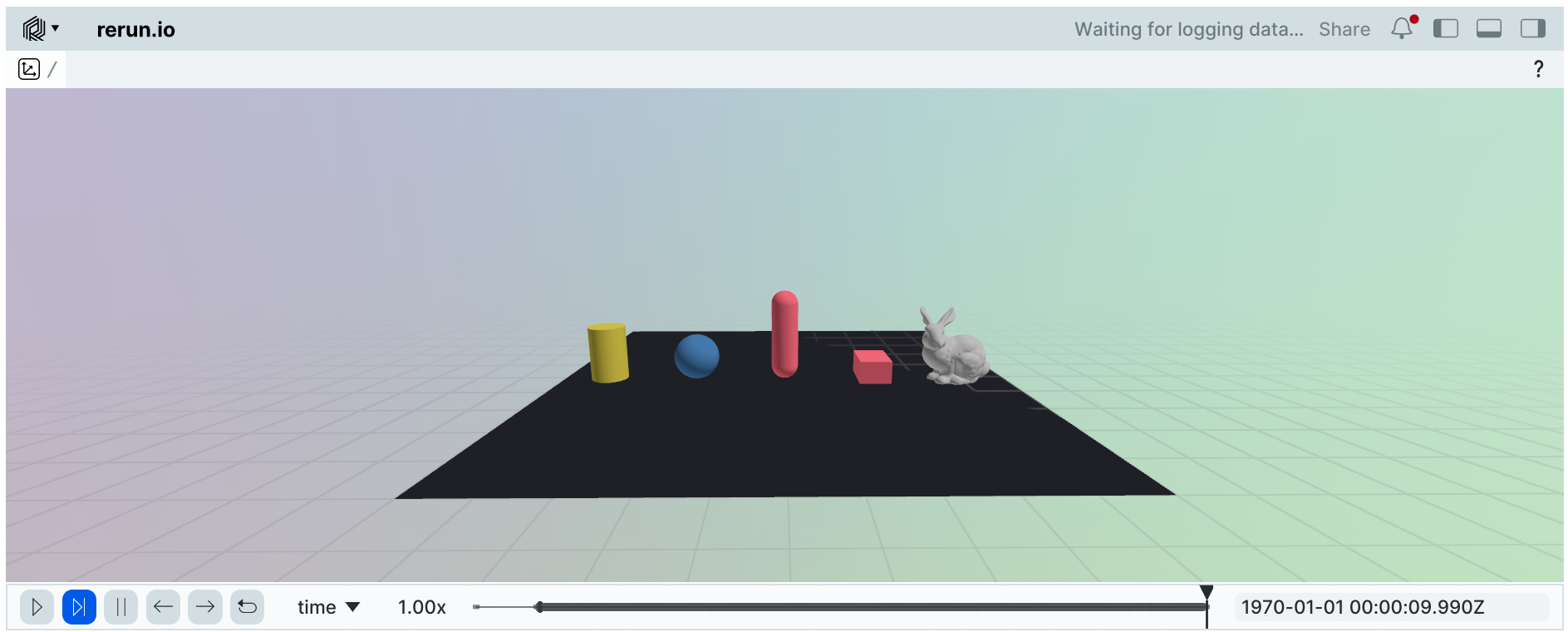
The history of states will be available in the viewer to scrub through the simulation timeline.
Viser Viewer#
The ViewerViser backend integrates with the viser visualization library,
providing web-based 3D visualization that works in any browser and has native Jupyter notebook support.
Installation: Requires the viser package:
pip install viser
Usage:
# Default usage: starts a web server on port 8080
viewer = newton.viewer.ViewerViser(port=8080)

# Open http://localhost:8080 in your browser to view the simulation

viewer.set_model(model)

# at every frame:
viewer.begin_frame(sim_time)
viewer.log_state(state)
viewer.end_frame()

# Close the viewer when done
viewer.close()
Recording and playback
ViewerViser can record simulations to .viser files for later playback:
# Record to a .viser file
viewer = newton.viewer.ViewerViser(record_to_viser="my_simulation.viser")

viewer.set_model(model)

# Run simulation...
for frame in range(500):
    viewer.begin_frame(sim_time)
    viewer.log_state(state)
    viewer.end_frame()
    sim_time += frame_dt

# Save the recording
viewer.save_recording()
The recorded .viser file can be played back using the viser HTML player.
Jupyter notebook support
ViewerViser has native Jupyter notebook integration. When recording is enabled, calling show_notebook()
will display an embedded player with timeline controls:
viewer = newton.viewer.ViewerViser(record_to_viser="simulation.viser")
viewer.set_model(model)

# Run simulation...
for frame in range(500):
    viewer.begin_frame(sim_time)
    viewer.log_state(state)
    viewer.end_frame()
    sim_time += frame_dt

# Display in notebook with timeline controls
viewer.show_notebook()  # or simply `viewer` at the end of a cell
When no recording is active, show_notebook() displays the live server in an IFrame.
The viser viewer provides features like:
Real-time 3D visualization in any web browser
Interactive camera controls (pan, zoom, orbit)
GPU-accelerated batched mesh rendering
Recording and playback capabilities
Public URL sharing via viser’s share feature
Utility Viewers#
Null Viewer#
The ViewerNull provides a no-operation viewer for headless environments or automated testing where visualization is not required.
It simply counts frames and provides stub implementations for all viewer methods.
builder = newton.ModelBuilder()
body = builder.add_body(mass=1.0)
model = builder.finalize()
state = model.state()
sim_time = 0.0

viewer = newton.viewer.ViewerNull(num_frames=10)
viewer.set_model(model)

while viewer.is_running():
    viewer.begin_frame(sim_time)
    viewer.log_state(state)
    viewer.end_frame()
    sim_time += 1.0 / 60.0

print(f"Ran {viewer.frame_count} frames")
Ran 10 frames
This is particularly useful for:
Performance benchmarking without rendering overhead
Automated testing in CI/CD pipelines
Running simulations on headless servers
Batch processing of simulations
Custom Visualization#
In addition to rendering simulation state with log_state(), you can draw custom debug overlays using the log_* methods available on all viewers.
Drawing lines:
Use log_lines() to draw line segments — useful for visualizing forces, rays, or normals:
# Draw force vectors at body positions
viewer.log_lines(
    "/debug/forces",
    starts=positions,        # wp.array[wp.vec3]
    ends=positions + forces, # wp.array[wp.vec3]
    colors=(1.0, 0.0, 0.0), # red
    width=0.005,
)
Drawing points:
Use log_points() to draw a point cloud:
viewer.log_points(
    "/debug/targets",
    points=target_positions, # wp.array[wp.vec3]
    radii=0.02,              # uniform radius, or wp.array[wp.float32]
    colors=(0.0, 1.0, 0.0),  # green
)
Visualizing contacts:
Use log_contacts() to draw contact normals from a Contacts object.
The viewer’s show_contacts flag (toggled in the ViewerGL sidebar) controls visibility:
viewer.log_contacts(contacts, state)
Transform gizmos:
Use log_gizmo() to display a coordinate-frame gizmo at a given transform:
viewer.log_gizmo("/debug/target_frame", wp.transform(pos, rot))
Logging images:
Use log_image() to display images (including batched/tiled
outputs from SensorTiledCamera) in
ViewerGL. By default, non-headless ViewerGL
shows logged images as dockable windows. Pass fullscreen=True to draw the image
as the main viewer surface for the current frame instead of the 3D scene. Accepted
shapes are (H, W), (H, W, C), (N, H, W), and (N, H, W, C) with
C in (1, 3, 4). Accepted dtypes are uint8 (values in [0, 255]) and
float32 (values in [0, 1]; values outside the range are clipped).
from newton.sensors import SensorTiledCamera

builder = newton.ModelBuilder()
builder.add_body(mass=1.0)
model = builder.finalize()

viewer = newton.viewer.ViewerNull()
viewer.set_model(model)

# Grayscale heatmap: normalize to [0, 1] before logging so float32
# values land in the accepted range.
depth_image = np.full((16, 16), 2.0, dtype=np.float32)
heatmap = depth_image / max(depth_image.max(), 1e-6)
viewer.log_image("heatmap", heatmap)

# Batched color tiles from a tiled-camera sensor. Allocate the sensor
# output once and reuse it every frame; the RGBA conversion is a
# zero-copy view.
sensor = SensorTiledCamera(model=model)
W, H, camera_count = 16, 16, 1
color_image = sensor.utils.create_color_image_output(W, H, camera_count)
# ... in a real pipeline, sensor.update(...) fills color_image each frame.
rgba = sensor.utils.to_rgba_from_color(color_image)
viewer.log_image("tiled_camera", rgba)
For a 3D input, a last-axis of 1, 3, or 4 is interpreted as channel count
for a single (H, W, C) image; otherwise the array is interpreted as a
batch (N, H, W) of grayscale images. Pass a 4D array if the
disambiguation matters.
Use fullscreen=True for image-first viewers, camera-debug views, or headless
frame capture where the image should replace the 3D scene:
from newton.sensors import SensorTiledCamera

builder = newton.ModelBuilder()
builder.add_body(mass=1.0)
model = builder.finalize()

viewer = newton.viewer.ViewerNull()
viewer.set_model(model)

# Batched color tiles from a tiled-camera sensor. Allocate the sensor
# output once and reuse it every frame; the RGBA conversion is a
# zero-copy view.
sensor = SensorTiledCamera(model=model)
W, H, camera_count = 16, 16, 1
color_image = sensor.utils.create_color_image_output(W, H, camera_count)
# ... in a real pipeline, sensor.update(...) fills color_image each frame.
rgba = sensor.utils.to_rgba_from_color(color_image)
viewer.log_image("tiled_camera", rgba, fullscreen=True)
The fullscreen=True selection is per-frame: call
log_image() with fullscreen=True after
begin_frame() and before
end_frame() on every frame that should show the
image. If a frame does not log a fullscreen image, ViewerGL
renders the 3D scene for that frame. Image rendering is currently implemented only
by ViewerGL; other viewer backends inherit the no-op base
implementation, so they ignore both the image and the fullscreen option.
Camera and world layout:
Set the camera programmatically with set_camera():
viewer.set_camera(pos=wp.vec3(5.0, 2.0, 3.0), pitch=-0.3, yaw=0.5)
viewer.camera_speed = 0.2  # m/s
When visualizing multiple worlds, use set_world_offsets() to arrange them in a grid
(must be called after set_model()):
viewer.set_world_offsets(spacing=(5.0, 5.0, 0.0))